Tag: Page Quality

  • How do I find duplicate content on entire website with WebsiteCrawler?

    Whether it’s near duplicate or exact copy of the content, WebsiteCrawler identifies the two across 1000s of pages in a few seconds. Our platform considers the repetition of phrases and words to identify it. By default, WebsiteCrawler considers non-stopwords to identify duplicate content. The platform does this to avoid false positives. What are stop words? WebsiteCrawler maintains a list of 100+ commonly used words. Such words will be ignored while generating the report.

    Website Crawler identifies up to 10 matching pages for each URL. It displays the URLs and the percentage similarity which can be up 100. The ideal score should be less than 70. If the page’s score for similarity is more than it, WebsiteCrawler.org flags it and considers the page as a duplicate.
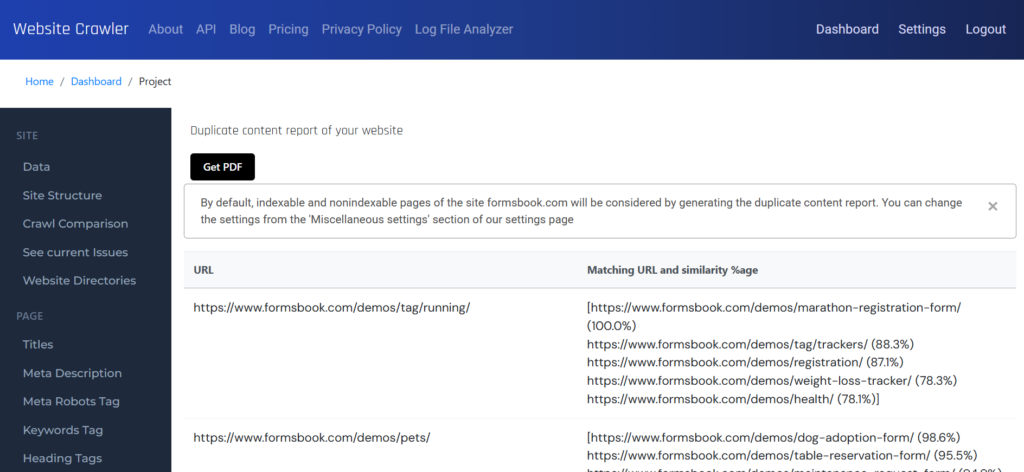
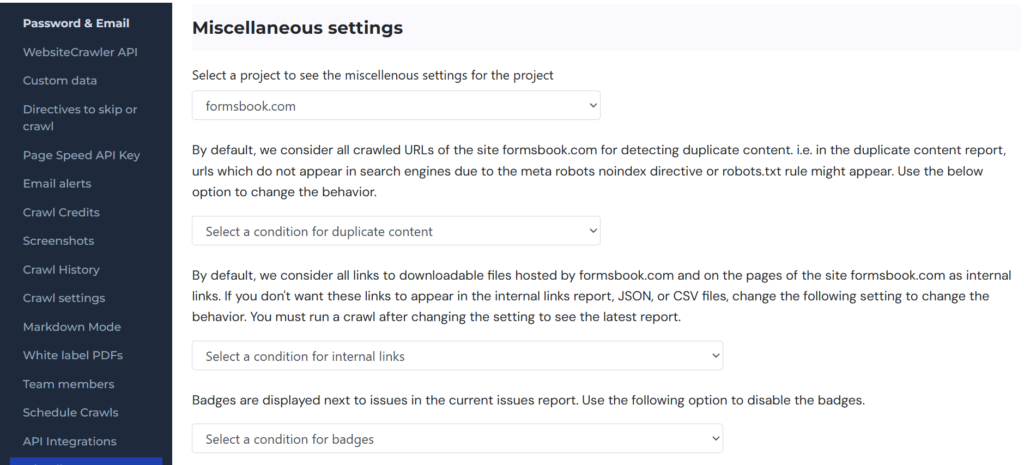
    WebsiteCrawler can be configured to consider only indexable URLs/pages (pages without meta robots noindex directive) while identifying the duplicate content on the site. If you don’t want our platform to consider URLs which will not be indexed by search engines, you can visit the settings page and click the “Miscellaneous” menu on the left sidebar. Now select the project from the drop down list. Find the setting “Select a condition for duplicate content” and select the “Consider indexable URLs” item from the list. Your miscellaneous setting for the selected project will be saved automatically. Now visit the duplicate content report to see the latest results.
    The duplicate content report is generated once a day because the backend does heavy work in the background while generating this report. Furthermore, if a site is big, it is impossible to fix the content issues in a day on 100s of pages. If you have fixed the content, run a crawl and open the report again to see the latest changes on the next day.
  • How to find low quality content on a website for free?

    How to find low quality content on a website for free?

    Thin content is one of the major reasons why websites suffer from Google Panda algorithm penalty. For those who are not aware, Google’s Panda algorithm has been designed to lower the rankings of websites that have On-Page SEO issues. Thin content is one of several On-Page search engine optimization issues.

    The Panda algorithm is now baked into the core algorithm. The best way to avoid this penalty is to find thin posts/pages and either rewrite the entire content, update it, add new paragraphs to it or noindex it.

    Although the above-mentioned activities take some time, the results can be fruitful.

    Benefits of finding and improving thin content

    If your website was hit by the Google Panda algorithm penalty, you should see some improvement after a major algorithm update. If your website wasn’t affected by an algorithm update and you have published high-quality content on your website, your website will start getting more visitors.

    Finding thin content on a website

    Frankly speaking, if a website has a 100s of 1000s of posts, it will take a lot of time to find thin pages. If you’re using a CMS such as WordPress, installing plugin will help you but your website’s performance will take a toll. This is because the plugin that finds the number of words in a post/pages will run several queries.

    The best way to find thin content on a website is to use Website Crawler.

    How to find thin pages on a website with WC?

    website crawler thin content report

    Step 1: Open Website Crawler – The On Page SEO checker. Enter your website’s URL in the 1st textbox and the number of pages you want to analyze in the textbox 2.

    Step 2: Click the Submit button. WC will now show a button called Status. Click this button to see the current crawling status.

    Step 3: Once WC crawls your website, enter your email address and click the submit button. Now, enter the verification code in the new textbox displayed on the screen. When you enter a correct verification code, WC will create an account for you and it will display a success message.

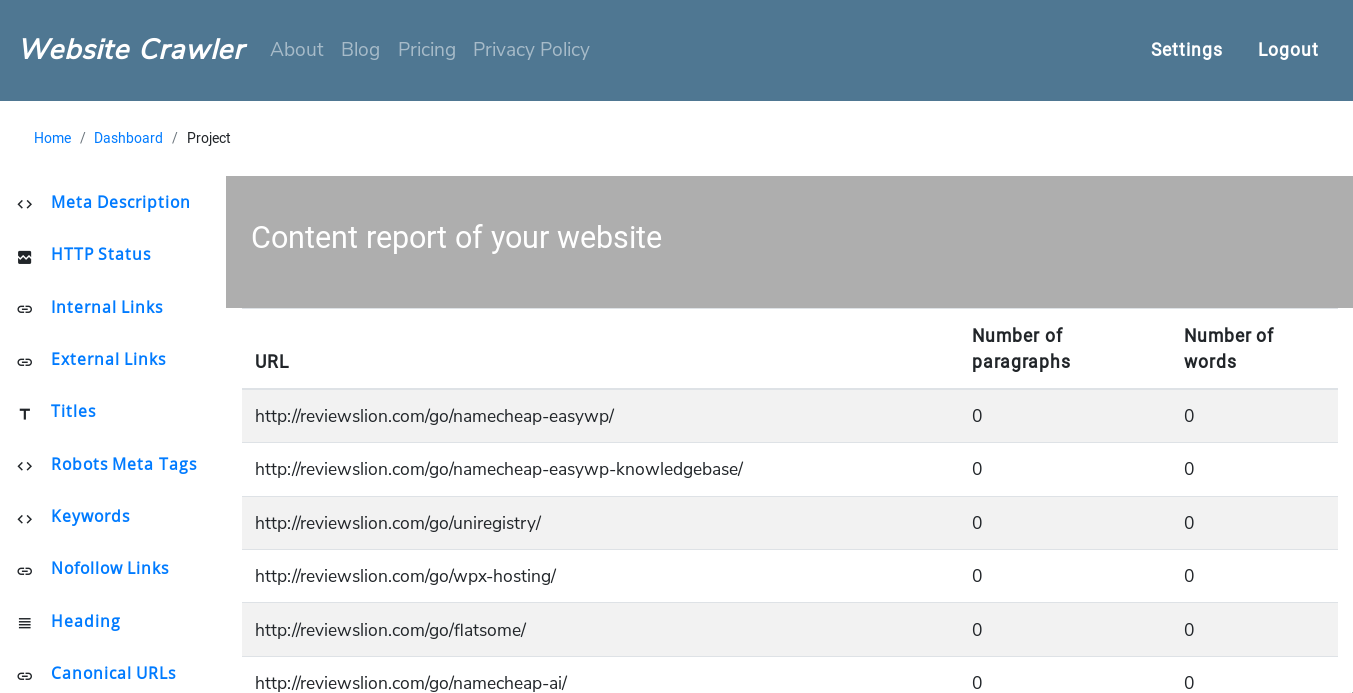
    Step 4: Log in to your account, and click the project name. Now, scroll down till you find the “Content Report” option. That’s it. Website Crawler will now display a list of posts, the number of paragraphs and words it has.

    Conclusion: If you want your website to be alive for several years, either make sure that you post high-quality content or noindex/update the outdated or thin content.