Tried crawling a website and saw “Blocked” error on the issues page or in the HTTP status report for internal links? WebsiteCrawler tries to be stealth but due to our impressively fast crawl speeds, the sophisticated firewall on the target website’s server might flag us. Don’t worry. We have a simple solution for this. You can crawl a blocked site by configuring a residential proxy.
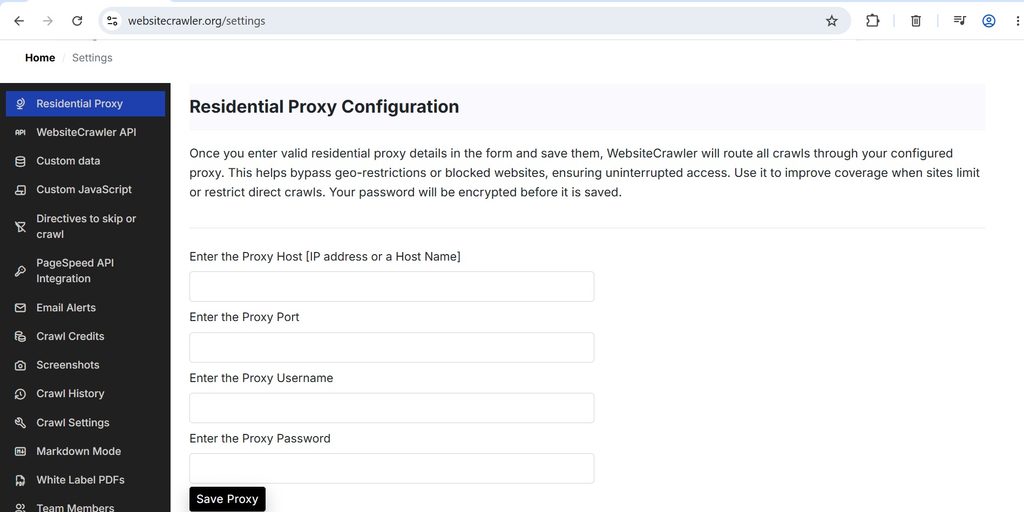
To configure a proxy, open the settings page and click the “Residential Proxy” menu on the sidebar. Now, enter the host, port number, user name and password. Click the “Save Proxy” button. WebsiteCrawler will now validate the details in the background. If the validation test passes, your proxy will be saved to the database and will be used to crawl the website. If the validation fails, you’ll see an error message. We keep privacy of the uses at the top priority. Your password will be encrypted before it is saved. So don’t worry about your login credentials.
What happens after the proxy configuration? Once you proxy is validated and saved, run a crawl. The crawler will route the crawl through the proxy provided IP address instead of your IP and the page GET HTTP requests will succeed. If the first request fail, our platform will retry getting the page source code for up to 5 times at random short intervals. If all requests fail, your provider’s IP might have been flagged.
Note: If your bandwidth usage has reached the threshold, our crawlers won’t be able to process the pages. Make sure you check the bandwidth before running a crawl.
If you don’t want to use a third-party service and you own the target website, make sure your firewall unblocks us (if it has blocked).
Leave a Reply