WebsiteCrawler integration for Slack enables users to receive messages to the Slack channel of the users choice leveraging Slack’s powerful feature called channels.
Why use integration for Slack? Although you can group mails, web applications don’t send messages via different email addresses. For example, we send most emails through our help@websitecrawler.org address. We don’t send SSL expiry alerts through some different email alias. A user may get emails from many different sources. Hence, the mails can get lost in the crowd. Slack allows you to create dedicated channels. The WebsiteCrawler integration for Slack lets users receive important messages to these dedicated channels. Thus, if you create a channel dedicated to our alerts, you can easily find all important messages sent by WebsiteCrawler at the same place.
Types of alerts WebsiteCrawler will send:
Downtime alerts: Our platform monitors uptime of sites. Depending on your chosen subscription plan, our platform run uptime checks every 5, 3, and 1 minute. If your site is unreachable after a check, WebsiteCrawler will immediately send an email to your registered email address and a message to your Slack channel.
SSL Expiry alerts: If the time left for the SSL certificate for the site to expire is less than a week, WebsiteCrawler will send Slack message to the channel along with the email.
Crawl completion alerts: If you run a crawl, you don’t have to keep your eyes glued on the list of processed URLs displayed by WebsiteCrawler. Once the crawl job is complete, you will immediately get an alert message in your chosen Slack channel.
Integrating Slack with WebsiteCrawler
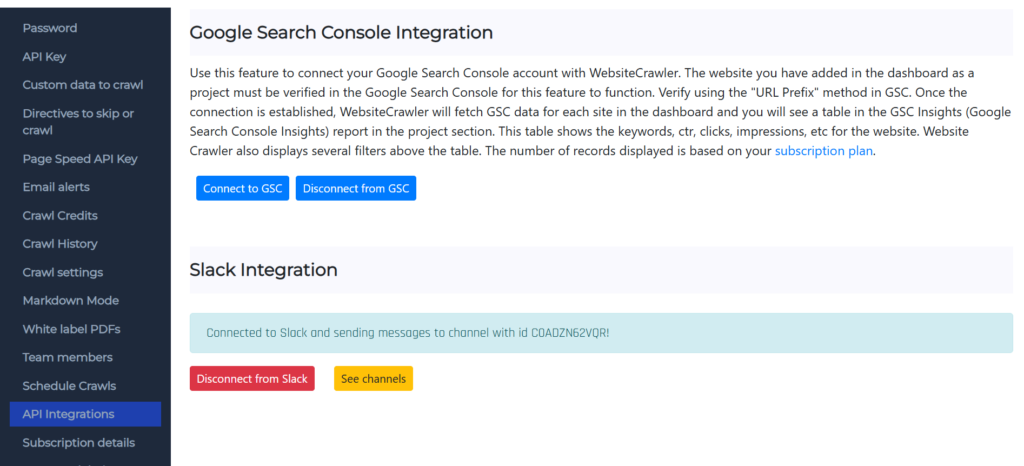
Our platform enables you to register a new account and sign in with your login credentials and sign in with Google. Log in to your WebsiteCrawler account and visit the settings page. Click the “API Integration” menu and find the button “Connect to Slack”.

Click this button and complete the OAuth authentication. Once the OAuth authentication is successful, you’ll see a button “See channels”. Click this button. WebsiteCrawler will now show a list of channels available in your workspace.
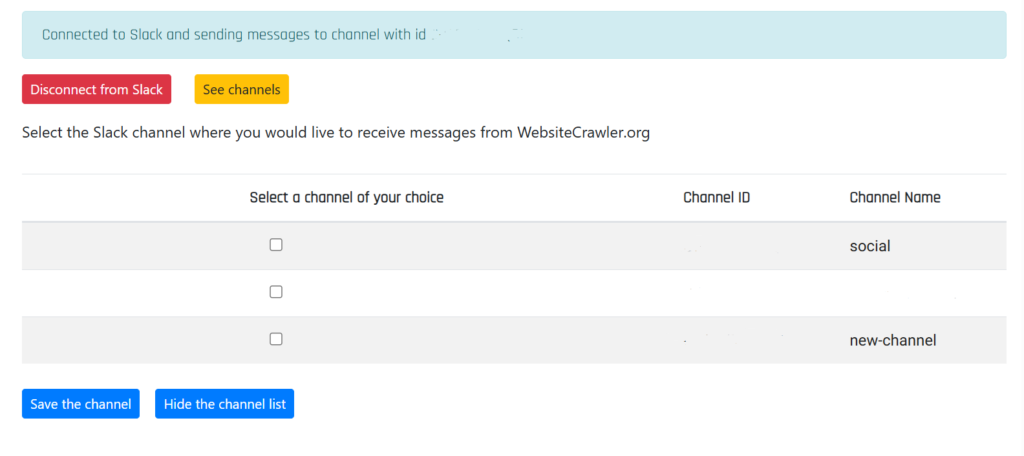
Select the channel where you’d live to receive our messages and click the “Save” button. The message “Connected to Slack” will convert to “Connected to Slack and sending messages to channel with id XXXXXX” where XXXXXX is your chosen Slack channel’s id.
How will the messages look?
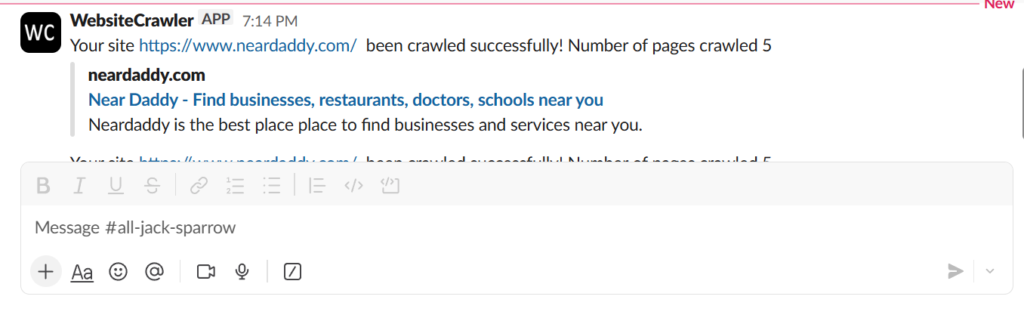
The sent messages are easy to interpret. Slack will log every message sent by our platform in your channel.
To know what data we collect and how long we retain it, please refer our Privacy Policy. You can also visit our Terms of Service page to read the TOS.
If you’re facing any difficulties while using this feature or want to know more about this feature, you can write an email to us at help@websitecrawler.org
Leave a Reply