WebsiteCrawler considers every crawl as different and to let users monitor audits and track data changes over time, it provides a feature called “Crawl History”. Why is this feature useful and was required? A new crawl can get you the latest data if the site’s content is updated frequently. If the content on the website doesn’t change much, the data would be identical. Hence, tracking changes in reports/data becomes easier.
How is this feature different from “Crawl compare”? The “Compare” report lets users see the content changes between two timestamps. The “History” feature displays every crawl of each project you’ve executed on WebsiteCrawler.org. It displays these columns – crawl date, project URL accompanied by a “Delete” button.
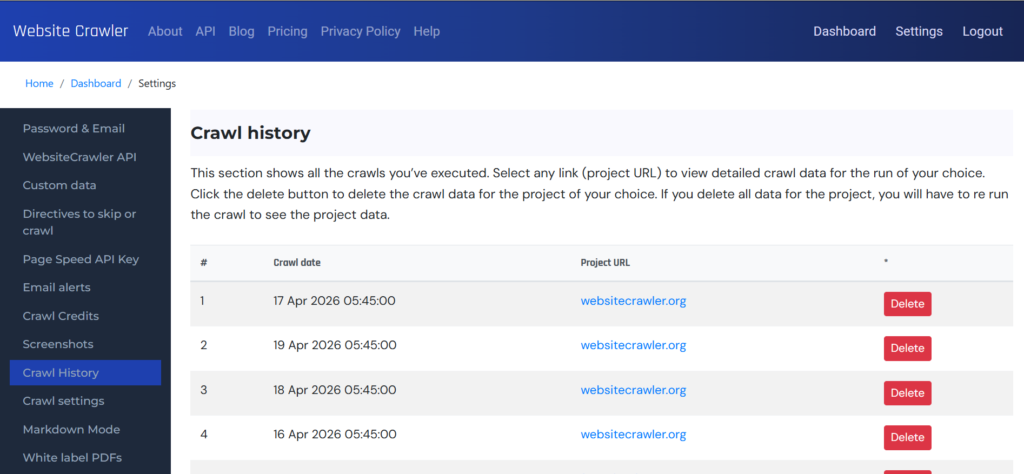
If you click the project URL, WebsiteCrawler.org will open the reports for the date which is displayed next to the project. You can open multiple reports by clicking on the respective project URLs and see how the site’s reports have improved or deteriorated over the time. The data will be available for each report. You can download the same by clicking the “Data” report menu on the left sidebar, selecting the fields you want in the report and clicking the “Download CSV” or “Download JSON” button.
There’s a delete button too on the “Crawl History” page. If you want to remove the site data for a particular date, simply click this button. If your website is huge, this process can take anywhere from a few seconds up to a minute to complete. Deleting old history that you no longer refer to keeps the database table clean. Whether to delete old records is entirely up to you.
Leave a Reply