A website may suddenly become unavailable for various reasons. If you’ve purposefully taken it down for maintenance, you are aware of the consequences, but if not, your website may suffer. When a running and a money making site is not live, it won’t generate revenue for the duration it was not reachable. Small sites are generally discovered by search engine users. If the user found your website in search results, and clicked its URL, he/she will see an HTTP error returned by the webserver instead of the page. The user may click the back button of the browser and choose some other result.
To ensure that your website is live 24 x 7, you can take the following measures:
- Thoroughly test the site before deploying it.
- Monitor the website actively.
- Use a good hosting.
- Use a CDN.
- Automatically recover the crashed site using an utility as a “Monit”.
Testing a web application before deploying it ensures that a programming bug won’t be responsible for crashing it. Choosing a hosting firm with good infrastructure should be the top priority of site owners because if the infrastructure of the hosting company is poor, your site may experience frequent downtimes.
A CDN ensures that your pages are cached and served from different Geographic locations. They serve the requested page from their servers instead of yours. Thus, if the origin server is not reachable, the cached pages may still be served the CDN. Monit is a small utility application that can perform basic health checks and restart the web, database or an application server. Monitoring a site manually requires someone to check your site periodically. You can do this yourself, ask someone to monitor your site 24 x 7, or use our uptime checker feature.
Our uptime monitoring module gets into action immediately after you create a project. Depending on your subscription plan, the module will run checks ever 5, 3 or 1 minute. Unlike our crawler which attempt to access the pages up to 5 times, the uptime monitor will send an alert message to your registered email address immediately after finding your site not reachable.
Where to find the uptime report?
Log in to your WebsiteCrawler dashboard and click the “Monitor” tab. Click the “See Report” link displayed in the Uptime column.
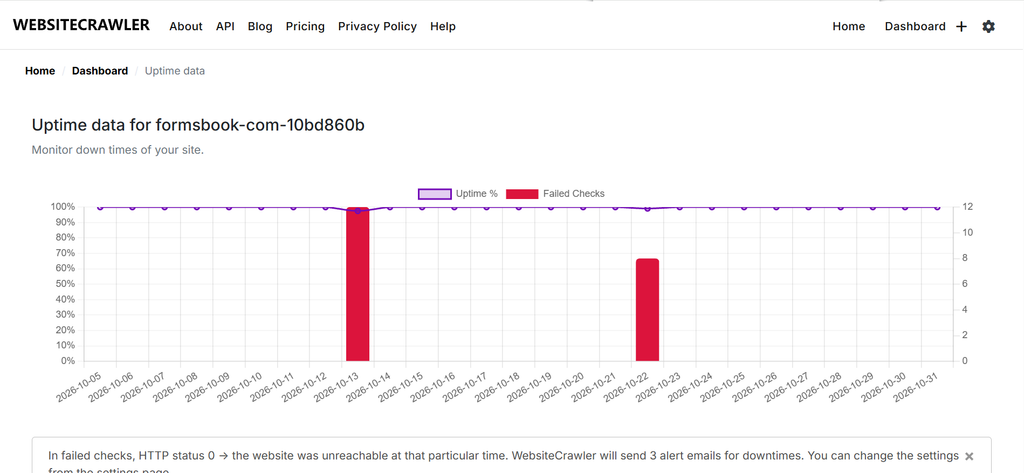
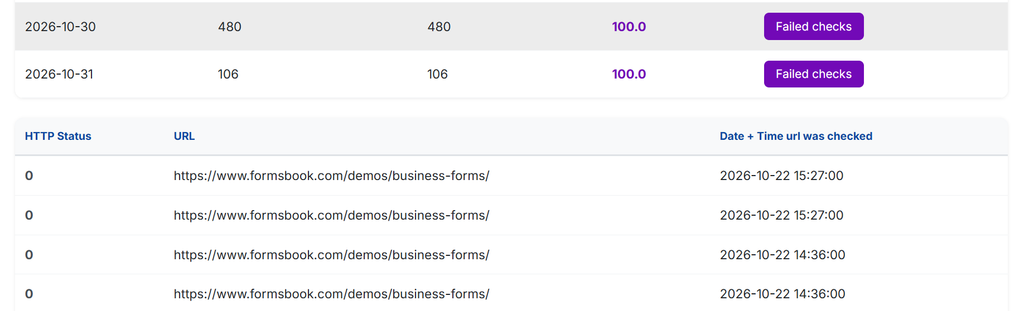
You’ll now see a graph and a table. The red bars in the graph denote the failed checks i.e. number of times your site was not reachable. The line depicts the uptime percentage. To see when your site was unreachable, click the “Failed Checks” button.
Besides monitoring uptime, WebsiteCrawler also monitors the SSL certificates of your site 24 x 7. If the certificate is nearing expiration, it will send an alert message to your registered email address.
Leave a Reply