As mentioned in our privacy policy, we let users delete their accounts. If you don’t want to continue using our platform, you can get rid of your account with just a few clicks of a button.
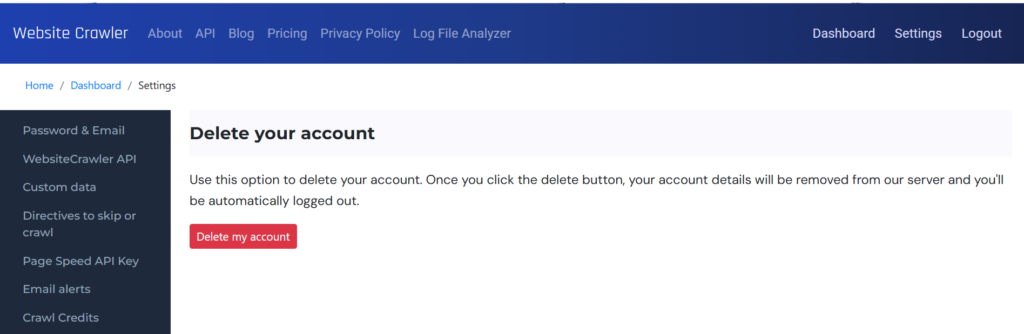
Visit the settings page. Scroll down and find the option “Account deletion” on the left sidebar. WebsiteCrawler will load a page with a red colored button. The label for this button is “Delete my account”. Click this button. That’s it! Your data will be removed and you will be immediately logged out of your account.
What data is removed?
Your project information: Every project you’ve created will be wiped out. The crawl and uptime monitoring for the projects/websites will also be deleted permanently.
Your login credentials: Your email address and the encrypted password will be removed from our database table. You can verify this using our forgot password utility. Enter your email address in the forgot password page and click the submit button, you won’t receive any email from us. In future, you can recreate your account with this email address.
API keys: The API key you had generated and the PageSpeed Insights API key you had entered in the settings page of WebsiteCrawler will be deleted too.
Other Settings: The crawl settings, whitelabel configuration, team members, custom data, alerts, etc you had configured in the settings page will be permanently deleted.
Google Search Console data: If you’ve linked your GSC account with WebsiteCrawler, the data fetched from your GSC account and stored to our database will be removed as well.
Although the above process is simple and takes just a minute, you can also send an email to us in case you want us to delete your data from our server.
If you have used Google Sign-in option to use our platform, you’ll have to unlink your Google account from our platform in addition to clicking the delete button.
Leave a Reply