WebsiteCrawler allows users to extract specific data from web pages using CSS style selectors and XPath selector. Both the approaches are powerful but XPath selector based extraction is more versatile.
Extracting data using CSS selectors
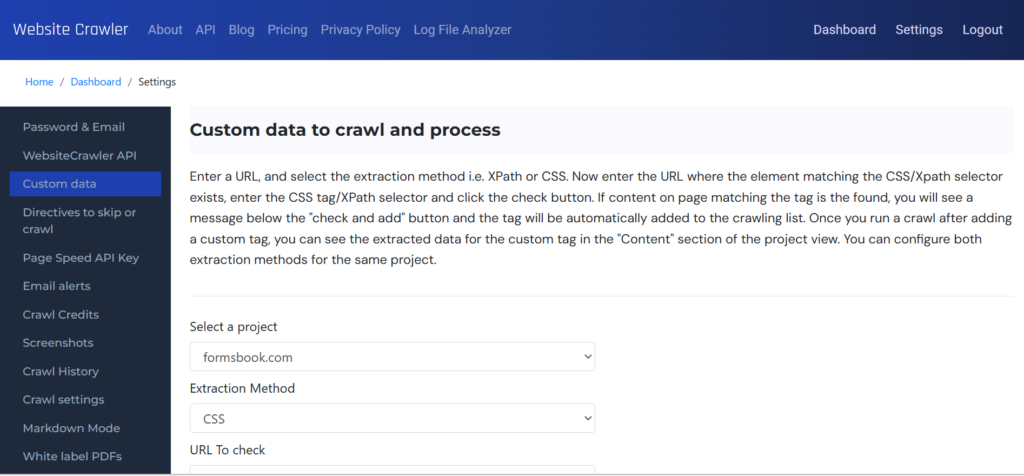
In the custom data settings section, you must first select a project. After selecting a project, choose the extraction method which can be CSS or XPath. Now enter the URL on the page which has the data you want WebsiteCrawler to extract and enter the comma separated CSS, XPath selectors in the textbox below it.
Suppose you want to extract the text of hyperlink element (a href) wrapped inside the span HTML tag for the project formsbook.com. Here’s the approach you should follow.
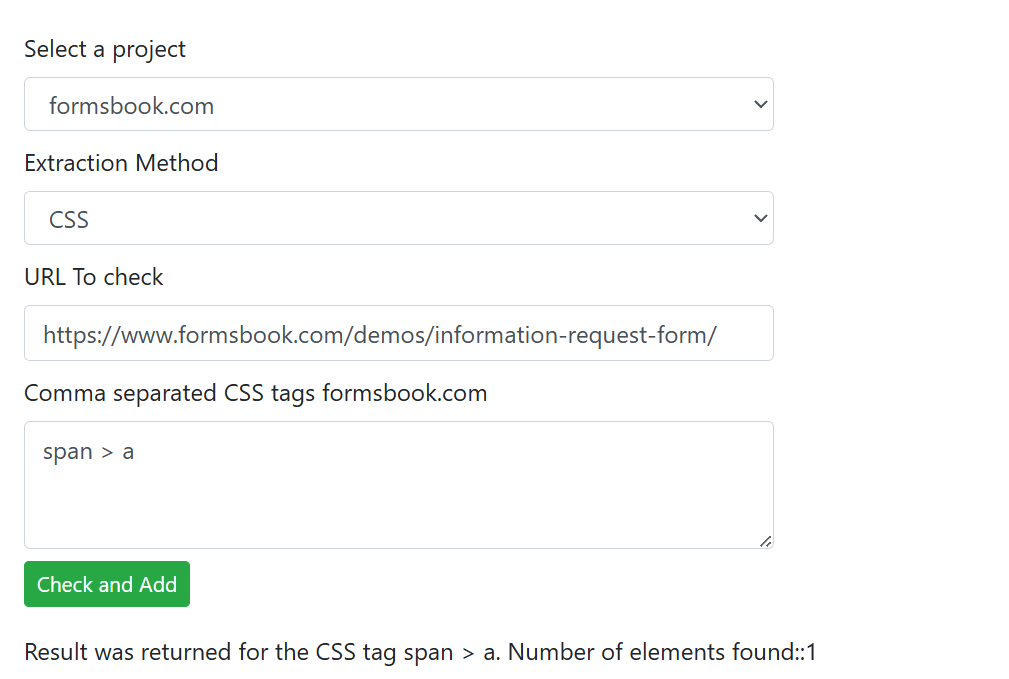
Select project formsbook.com and select the extraction method “CSS”. In the URL to check field, enter the URL https://www.formsbook.com/demos/information-request-form/ and in the text box below below it, enter the css selector span > a where span > a selects direct child URLs inside the span HTML element. Now click the “Check and Add” button. If WebsiteCrawler detects matching elements, it will display the number of elements found on the page. This number can be 1 or more. Unless a match is found, the selector won’t be added to the crawling list. Once the selector is added to the crawling list, run a new crawl. The custom data (span > a) will be extracted and will be available in the “Custom data” report or the data section on reports page.

The above screenshot is of our log file which depicts crawler working on the span > a custom data.
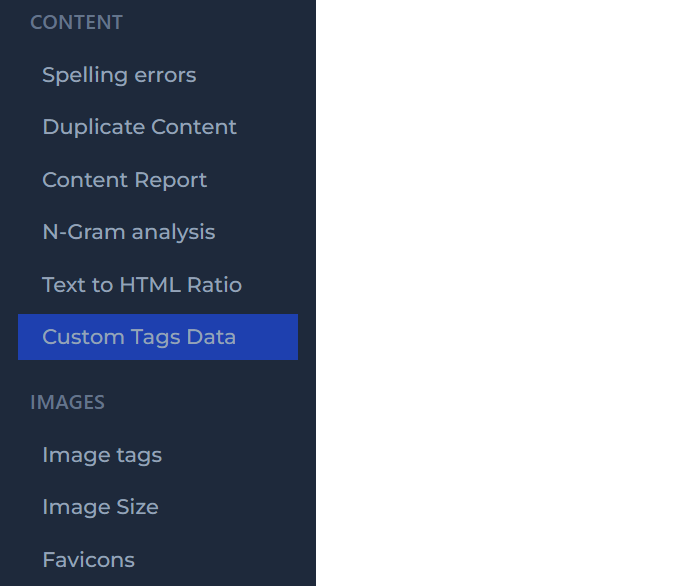
The custom tags data report will be available under the content section of the reports section’s left sidebar only if custom data settings was configured and a crawl was run.
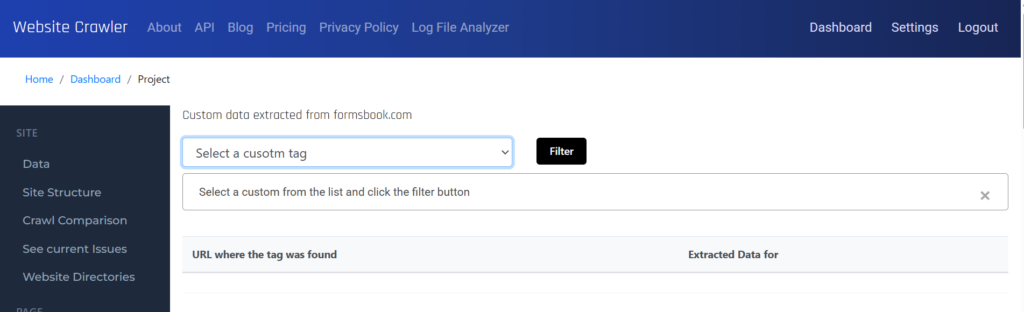
This is the custom tags data report. Select a tag whose data you want to see.
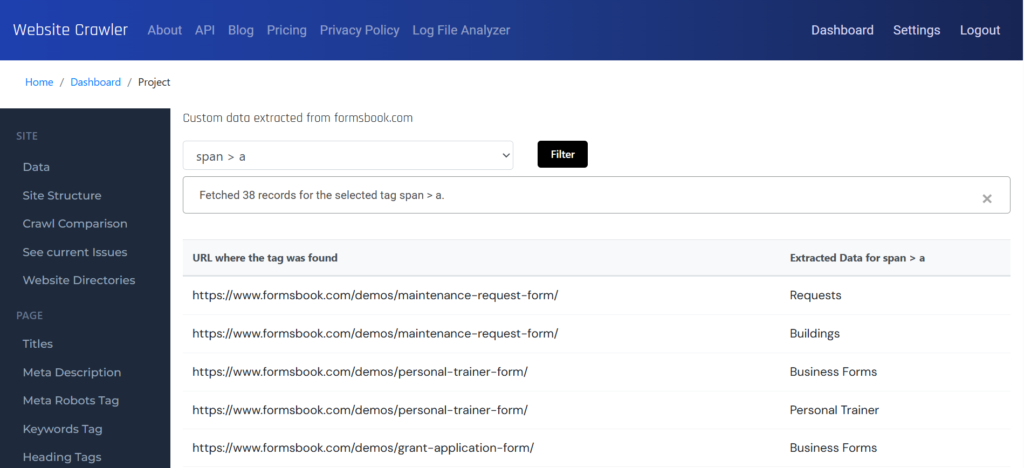
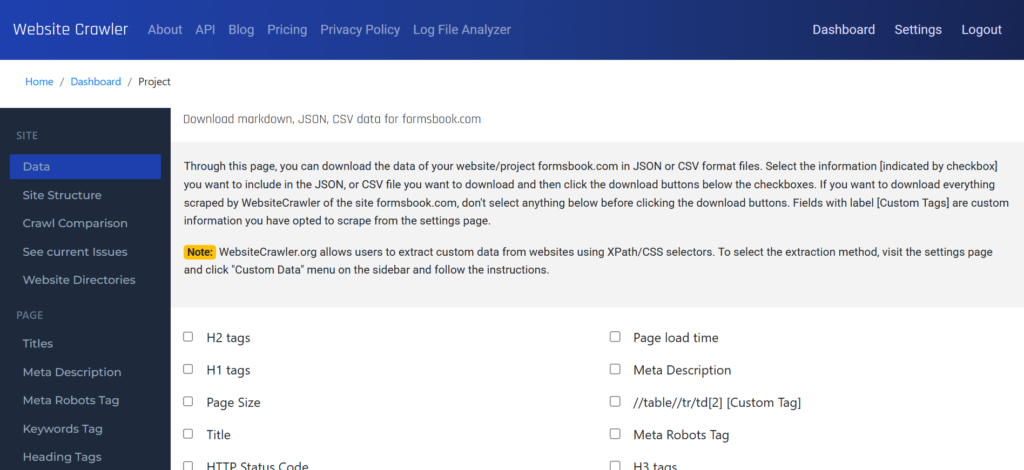
This is the final report. You can download the data in the CSV, JSON format from the data section of the report.
Extracting data using Xpath
Here’s another example for extracting custom data. This time we will use XPath extraction method. Suppose I want to extract the number of users that the Growth subscription plan of WebsiteCrawler.org supports. Here’s the XPath settings for the same:
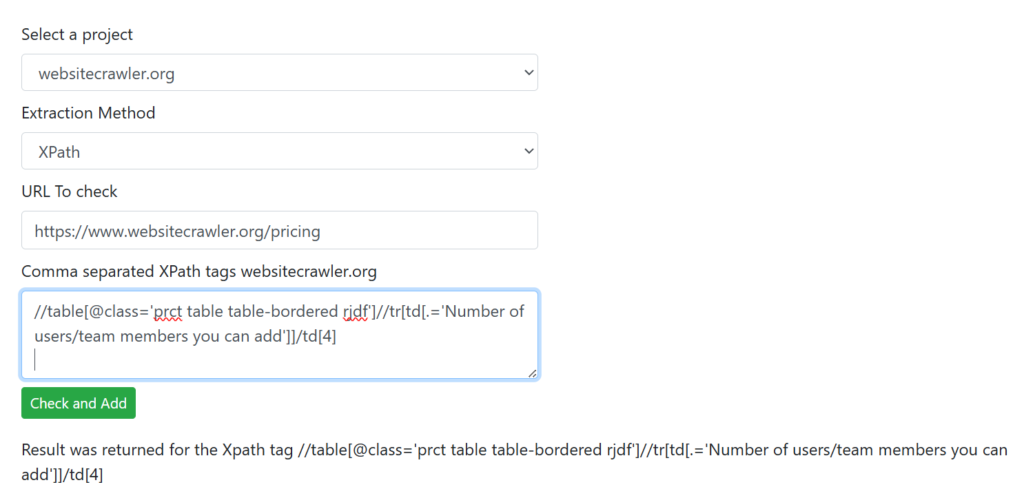
In the above screenshot, you can see that the “Check and Add” button click resulted in a result. That Xpath selector was added to the crawling list. Now, after running a crawl, this report was generated.
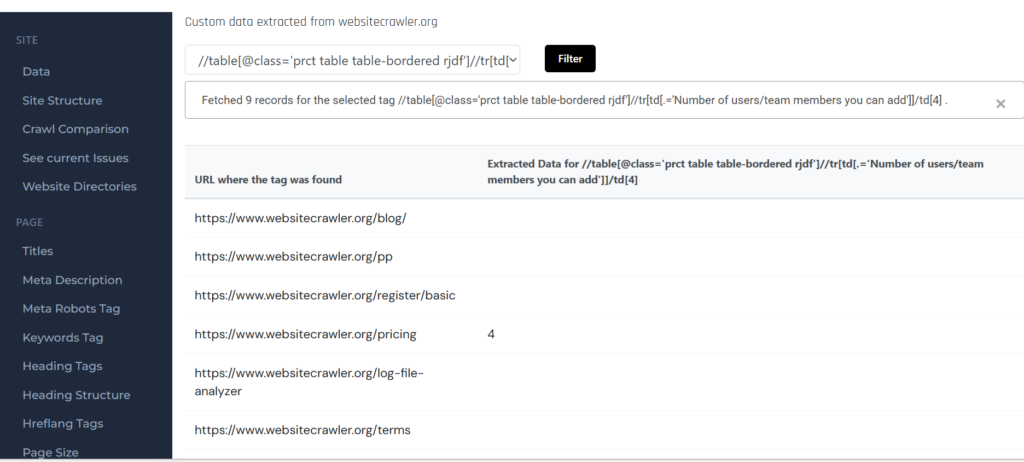
As only one page has the pricing table on WebsiteCrawler.org, only a single result is displayed in the custom tags data report and no data is reported for the other crawled pages.
Note: A result should be returned for the XPath selector as well. Unless a matching result is displayed, the selector won’t be added to the crawling list. WebsiteCrawler verifies the selectors you enter. It uses Chrome browser to do so.

By default, WebsiteCrawler.org skips adding links to downloadable files such as PDFs, videos, MS Excel/Word/PowerPoint documents, etc available on web pages. To deactivate this behavior, visit the settings page then click on the Miscellaneous settings menu on the left sidebar. Once the settings appear, select a project from the drop-down list and choose the option “Consider links to downloadable files hosted on example.com as internal links” from the “Select a condition for internal links” drop-down list.
Tip: In case you can’t write the XPath or CSS selector, use Google Gemini, Claude or ChatGPT. Ask these tools to generate a selector for the page and verify the same using our Custom Data feature.
Leave a Reply