For easy identification, projects in WebsiteCrawler have the same name as the domain you had entered for crawling. Projects cannot be renamed. but can be grouped.
How to create a project? When you run a crawl and sign in to WebsiteCrawler after registering an account or signing in with Google, our platform will automatically create a new project for you. While your site is being crawled, you can register a new account by clicking on the “Get started” button on the menu bar and following the instructions displayed on the page. If you create an account during an active crawl task, WebsiteCrawler will create a project for you automatically and you can monitor the crawl progress from the dashboard. If you’ve logged in first and want to create a new project and run a crawl, this guide is for you.
Click the green “Create a new project” button displayed on the dashboard page. You’ll now see a form where you must enter the target website URL. Enter the URL and click the “Add website” button. WebsiteCrawler will add your new project to the list.
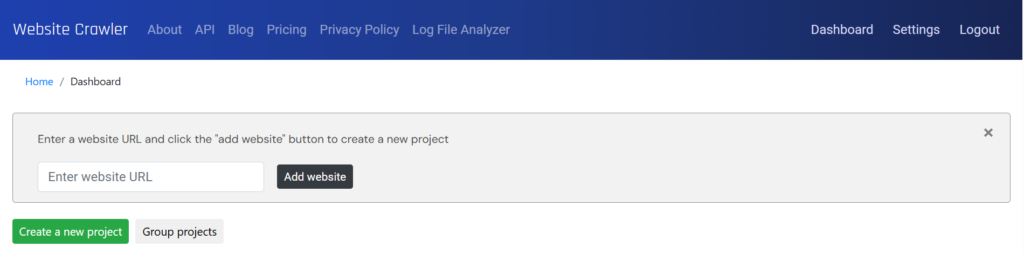
To run a crawl, visit the homepage and enter the website URL you had entered in the above step. Now enter the crawl limit and click the “Crawl My Site Now” button. WebsiteCrawler will start crawling your site. You can close this page and visit the dashboard to monitor the crawl progress.
WebsiteCrawler lets users delete a project. When you delete any project, the crawl credits won’t be affected in any way. For example if you made our platform crawl 1000 pages and you remove a project, the crawl credits will not be incremented by 1000.
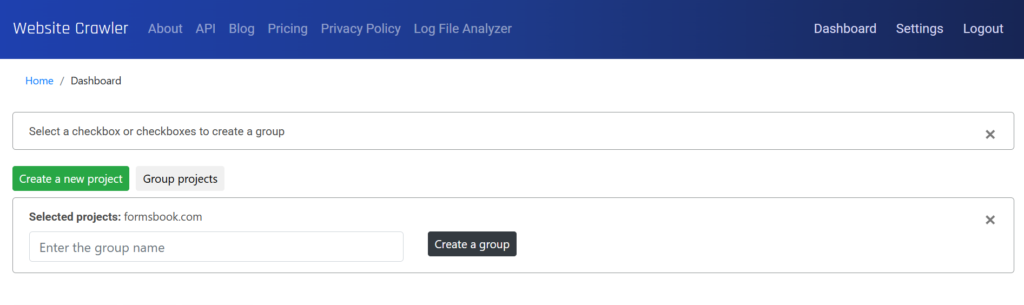
In our first paragraph, we had mentioned another feature of WebsiteCrawler.org i.e. Group Projects. Along with creating a project, you can group projects from the dashboard page. To do this, click the “Group Projects” button. WebsiteCrawler.org will now show checkboxes beside each project. Select the checkboxes of your choice and enter the name for the group in the new textbox WebsiteCrawler displays.
Leave a Reply